Hey Copilot, Can You SSH Into a Switch?
What happens when you point an AI at two factory-fresh SONiC switches and say 'figure it out' — a real-world experiment in AI-assisted network discovery.
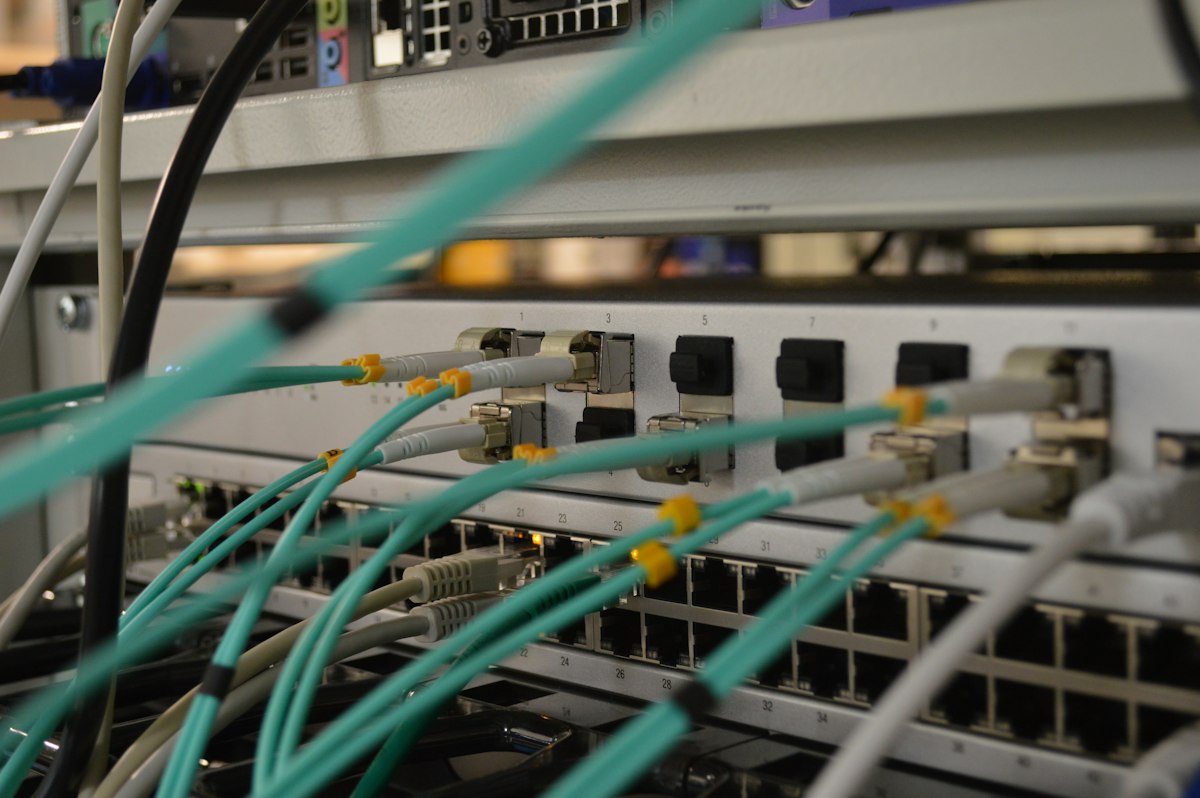
What happens when you point an AI at two factory-fresh SONiC switches and say “figure it out.”
I’ve been working with network switches for years. Cisco, Arista, Juniper — the usual suspects. Recently, I got my hands on two Dell S5248F-ON switches running SONiC, the open-source network operating system that’s been quietly taking over data center fabrics. The switches were racked, cabled, powered on, and completely blank. Factory defaults. No IP addresses, no VLANs, no BGP — nothing.
Instead of doing what I normally do (pull up the manual, SSH in, start typing commands), I tried something different. I pointed GitHub Copilot at the console server and said: “Log in to the switches and tell me what you find.”
What happened next was one of the more interesting afternoons I’ve had in a lab.
The Authentication Puzzle
Here’s something that would be straightforward for any network engineer but was genuinely novel for an AI: the switches weren’t directly reachable over the network. They had no management IPs. The only way in was through a serial console server — a separate appliance that provides remote access to the switches’ serial console ports.
That means a multi-step login:
- SSH to the console server using corporate credentials
- Connect to the correct console port (each switch gets a dedicated port number)
- Log in to the switch using a different set of credentials — an admin account with a password stored in a cloud secrets vault
The AI didn’t know any of this upfront. It had the console server’s hostname and IP, and it knew there were two switches. But it needed guidance — this wasn’t a “point and click” situation.
First, it needed credentials for the console server. I quickly discovered that you can’t just type your password into Copilot — yeah, oops. So instead, I had it pull my corp credentials from my password vault (Bitwarden). I told it which entry to look for, and it retrieved what it needed through the Bitwarden CLI.
For the console server itself, it used those corp credentials to connect, but then it needed to know which port number mapped to which switch. I gave it the port numbers.
Once past the console server, it hit the switch login prompt and needed the admin password — a completely different credential stored in a different place. This time I pointed it at Azure Key Vault (the Azure CLI was already authenticated on my machine), told it which vault and secret name, and it retrieved the switch password and logged in.
Here’s the honest version: I guided it through each authentication boundary. I told it where to find credentials, not what the credentials were. Corp creds from Bitwarden, switch creds from Azure Key Vault — two vaults, two auth hops. The AI did the mechanical work — calling the Bitwarden CLI, hitting the Key Vault API, formatting the SSH commands, handling the console server’s interactive prompts — but I was the one saying “now you need to authenticate here, and the credentials are over there.”
It’s a collaboration, not magic. But it’s a collaboration where I never had to type a password into a terminal.
First Contact: “What Am I Looking At?”
With a shell on the first switch, the AI started doing what any good network engineer does on an unfamiliar device: interrogating it.
1
2
3
4
show version
show platform summary
show interface status
show interface transceiver
Within minutes, it had built a complete identity card:
| Attribute | Value |
|---|---|
| Platform | Dell S5248F-ON |
| SONiC Version | 4.5.1 Enterprise Premium |
| ASIC | Broadcom |
| Ports | 48× 25G SFP28 + 8× 100G QSFP28-DD |
| PSUs | 2× OK |
| Fans | 8 chassis + 2 PSU, all healthy |
| Config State | Blank — factory default |
| Uptime | 56 days (someone powered these on back in January and walked away) |
The CLI surprise. Here’s where things got interesting. The AI initially tried commands it knew from community SONiC documentation — the open-source version that runs on bare Linux. Dell Enterprise SONiC uses a completely different CLI framework called sonic-cli (based on Klish), and the syntax is not what the docs say.
Some examples of the translation:
| What the AI tried | What actually works |
|---|---|
show ip bgp summary | show bgp ipv4 unicast summary |
interface range Eth 1/1-1/48 | interface range Ethernet 0-47 |
| include | | grep |
show platform inventory | show platform summary (Linux shell only) |
The AI adapted in real-time. Each failed command got filed away as “not that syntax,” and within about 20 minutes, it had a working mental model of the Dell SONiC CLI. It even documented the differences for future reference — something I probably wouldn’t have done that systematically on my own.
Mapping the Physical World
Network switches don’t exist in isolation. They’re connected to other switches, and understanding the physical topology is critical before you configure anything. The AI used two approaches:
Transceiver inventory. By querying every port’s transceiver data, the AI built a complete picture of what was physically plugged in:
- Ports 1/39–1/40: Dell 25G SFP28 DAC cables (1 meter) — inter-switch links
- Ports 1/45–1/46: Dell 10G-LR SFP+ optics (long-range fiber)
- Ports 1/47–1/48: Dell 10G-SR SFP+ optics (short-range fiber) — spine uplinks
- Ports 1/49–1/52: FS QSFP28-DD 200G DAC cables (1 meter) — purpose unknown
Out of 56 ports, only 10 had anything plugged in. The AI knew exactly where to focus.
LLDP neighbor discovery. The Link Layer Discovery Protocol (LLDP) lets connected switches announce themselves to each other. After bringing up all interfaces with no shutdown, LLDP confirmed:
- Ethernet38 ↔ Ethernet38: ToR A connects to ToR B (25G DAC) ✅
- Ethernet39 ↔ Ethernet39: ToR A connects to ToR B (25G DAC) ✅
- Ethernet47 → Cisco 9336C-FX2 spine switch (10G SR) ✅
- Ethernet46 → Cisco 9336C-FX2 spine switch (10G SR) ✅
Now the AI had a topology map: two ToR (Top-of-Rack) switches connected to each other and uplinked to two Cisco spine switches. A classic leaf-spine fabric.
The 100G Mystery
Four ports (Ethernet48–51) had FS QSFP28-DD 200G DAC cables plugged in. All four showed phy-link-down. No LLDP neighbors. No light. Nothing.
The AI investigated:
- Were they cross-connected between the two switches? (Unknown — no LLDP)
- Speed mismatch? The DACs advertised 200G capability, but the ports are 100G QSFP28-DD. Possible negotiation issue.
- Wrong port-group speed? Maybe they needed explicit speed configuration.
After checking everything it could from the CLI, the AI flagged this as an open item: “Physical layer issue — either not cross-connected or speed mismatch. Needs physical verification at the rack.”
I appreciated this. The AI didn’t guess or make up an answer. It exhausted what it could check remotely, documented what it found, and said “someone needs to look at the cables.” That’s exactly the right call.
The Second Switch
Repeating the discovery on Switch 2 (ToR B) was faster — the AI already knew the CLI quirks, the authentication flow, and what to look for. Within minutes it had confirmed:
- Same model (S5248F-ON), same SONiC version (4.5.1 Enterprise Premium)
- Different chassis MAC and serial number (obviously)
- Also factory blank — no configuration
- LLDP confirmed matching connections to ToR A on ports 38 and 39
What Did the AI Actually Produce?
At the end of this discovery session, I had:
- A complete hardware inventory for both switches — serial numbers, MACs, firmware versions, port counts, PSU/fan health
- A transceiver map — every optic cataloged with vendor, part number, speed, and connector type
- A physical topology diagram — which ports connect to which devices, confirmed via LLDP
- A CLI reference — Dell Enterprise SONiC vs community SONiC vs Cisco NX-OS command translation table
- An open issues list — the 100G DAC mystery, missing serial number for ToR B, console port documentation gaps
All of this was produced in a single session, documented in structured markdown, with tables and cross-references. If I’d done this manually, it would have been scattered across terminal scrollback and maybe a hastily typed Notepad document.
What I Learned
The AI doesn’t replace the engineer — it replaces the tedium. I still had to point it in the right direction, tell it about the console server, and validate its findings. But the mechanical work — running show commands, parsing output, building tables, documenting everything — that’s where it shines.
Adaptation matters more than knowledge. The AI’s initial SONiC knowledge was wrong (community CLI vs Enterprise CLI). What made it useful was how quickly it adapted when commands failed. It didn’t get stuck — it iterated.
Discovery is underrated. Most engineers skip the thorough inventory step because it’s boring. Having an AI that finds it inherently interesting (or at least doesn’t find it boring) means you actually get a proper baseline. That baseline pays off enormously when you start configuring and something doesn’t work.
Next up: I hand the AI a /25 subnet and say “plan the IP addressing for a two-switch iBGP fabric with spine uplinks.” It does exactly that — and then we hit our first real problem when BGP comes up but nothing is reachable.
Have questions about AI-assisted network operations? Find me on Mastodon or GitHub.